

How to Use DIGIFORGEX Record Pro for Browser Captures
Finding an efficient browser extension to handle daily documentation tasks can greatly streamline your workflow. When you need a reliable Chrome Free screen recorder that also handles screenshot capture and live annotations, evaluating tools like DIGIFORGEX Record Pro becomes essential for clear visual communication.
This guide walks through the core capabilities of DIGIFORGEX Record Pro, helping you understand how to record your screen, add annotations, and export media directly from your browser without unnecessary friction.
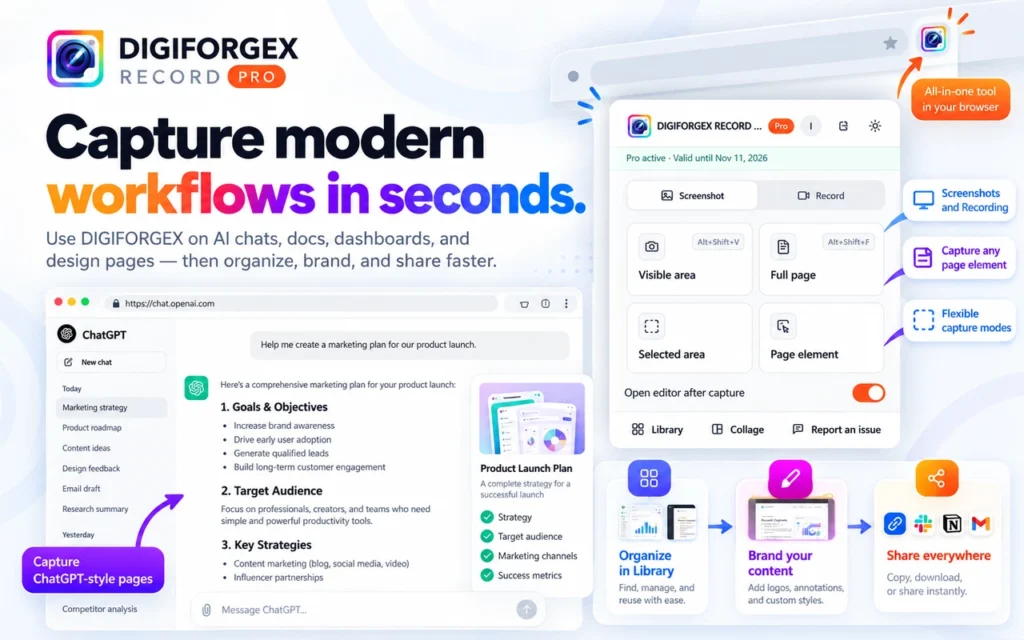
Why this product stands out
- Record browser tabs, desktop views, or webcam feeds directly inside Chrome.
- Capture full-page screenshots, visible areas, or specific page elements.
- Add live annotations and utilize mouse effects like click highlights.
- Export high-quality video files without watermarks when using the Pro tier.
Getting Started With Your Chrome Free Screen Recorder
Setting up your environment for browser-based media capture begins with adding the extension to your browser toolbar. As a reliable Chrome Free screen recorder, the tool installs directly into your browser extensions list, allowing you to access recording and capture controls without opening a separate desktop application. Once pinned for quick access, clicking the extension icon reveals a clean, streamlined dashboard displaying the primary modes for video capture and image capture.
Before initiating your first recording or capture session, take a moment to configure your preferred audio and visual settings within the extension menu. You can select whether to capture system audio, microphone input, or both simultaneously, depending on whether you are recording a tutorial, presentation, or meeting. The interface also lets you toggle webcam overlays and adjust countdown timers, ensuring your captures start smoothly and align precisely with your intended workflow.
- Pin the extension to your toolbar for immediate, single-click access.
- Select your preferred microphone and system audio input sources.
- Configure webcam overlay settings and resolution presets before recording.
Capturing Screenshots and Full-Page Visuals
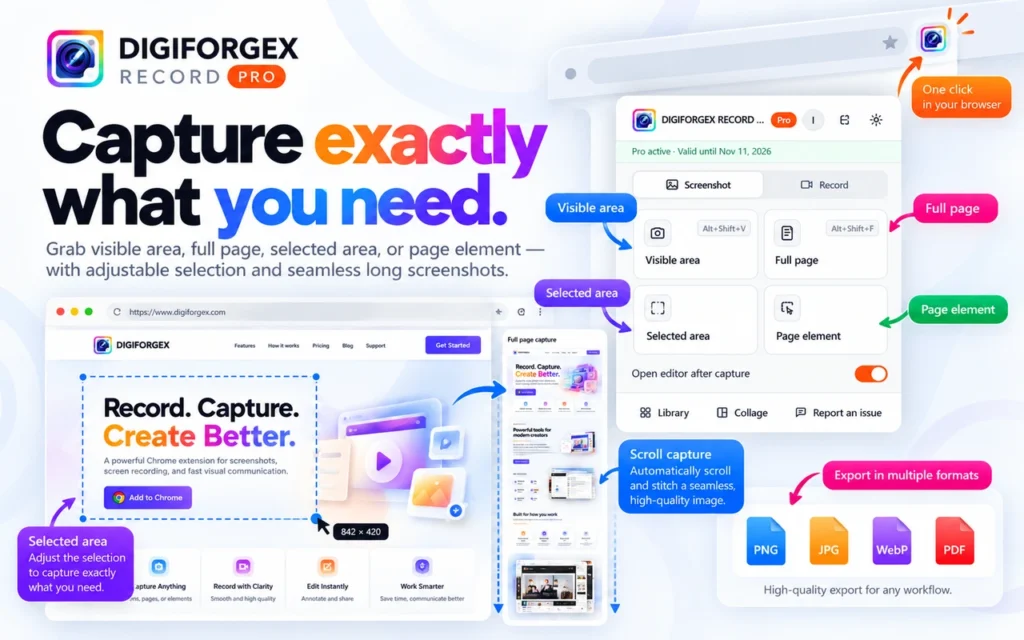
Beyond motion video, documenting static web pages often requires more than just a standard visible-area capture. Using the built-in screenshot functionality, you can choose between snapping the currently visible browser window or executing a full-page scroll capture that stitches the entire scrollable document into a single, cohesive image file. This is particularly useful for developers reviewing long layouts, designers archiving reference pages, or educators saving complete articles for offline reading.
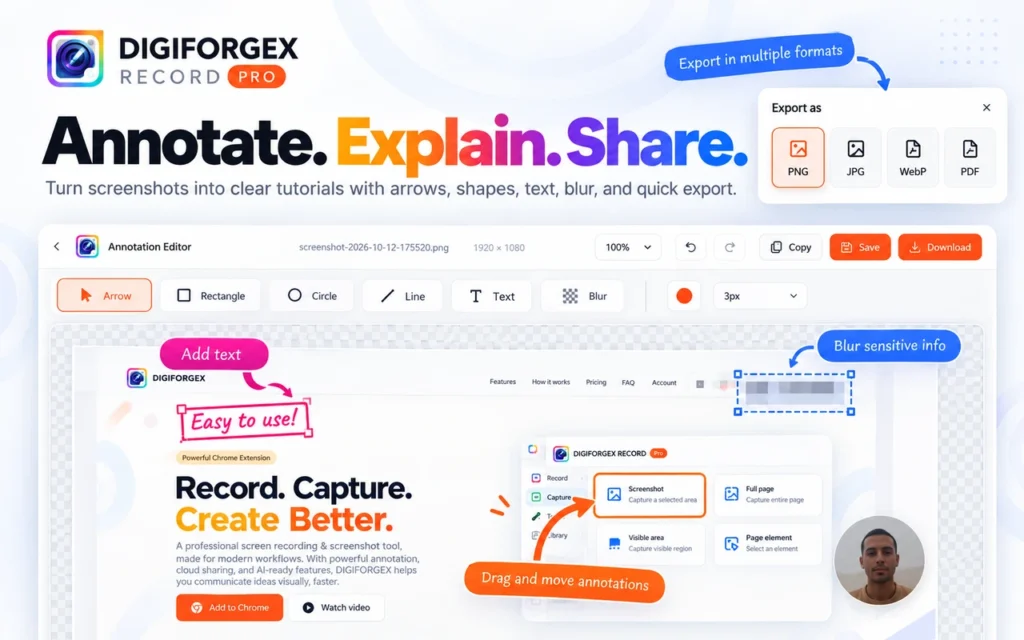
After capturing your screenshot, the extension provides immediate access to live annotation tools. You can highlight key sections, add text callouts, obscure sensitive data using blur or crop filters, and save the final image locally. These integrated editing features eliminate the need to switch to external image editors, streamlining the process from capture to final documentation in just a few clicks.
- Choose between visible area, selected region, or full-page scroll capture.
- Apply live annotations, highlights, and text directly onto the captured image.
- Save and export your annotated screenshots in standard image formats.
Recording Screen, Tab, and Webcam Feeds
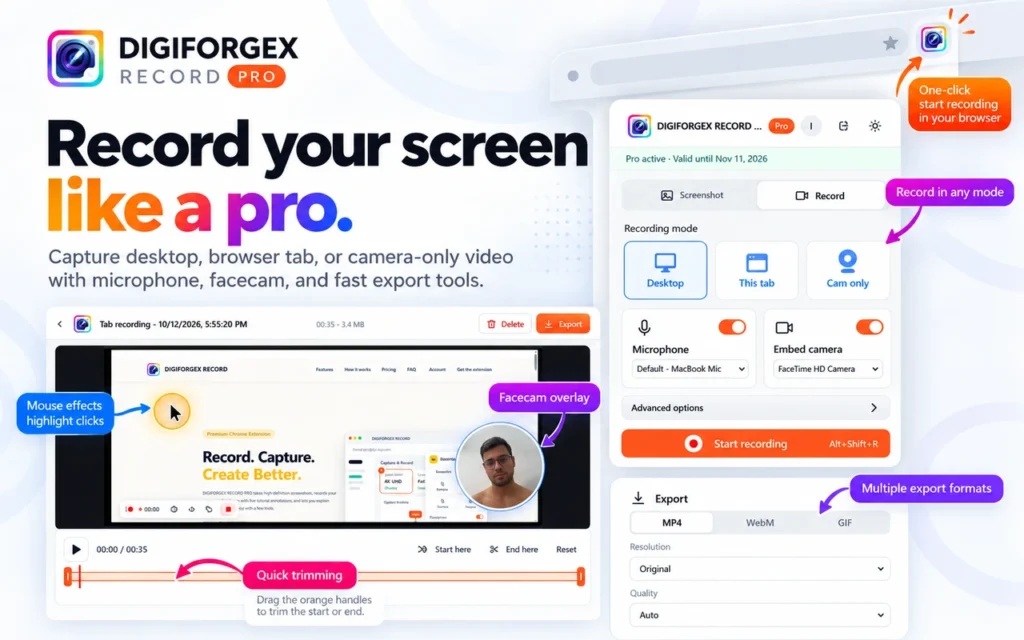
When you need to demonstrate a workflow, present a lecture, or record a bug report, selecting the correct capture source is essential. With the DIGIFORGEX Record Pro extension installed, open the main menu to choose between recording your entire desktop, a specific browser tab, or your webcam feed alone. For tutorials and presentations, you can also combine your screen and webcam to provide a personal, on-screen presence alongside your software walkthroughs.
Before hitting the record button, configure your audio preferences to ensure your microphone or system sounds are captured correctly. The tool provides straightforward toggles within the interface, allowing you to include or exclude external audio inputs based on your immediate needs. This flexibility makes it easy to record quick software demonstrations without complicated secondary audio routing or hardware setups.
- Choose between desktop, active browser tab, or standalone webcam recording modes.
- Enable webcam overlay to add personal commentary to your software tutorials.
- Configure audio input sources directly from the extension pop-up menu.
Exporting and Managing Your Recorded Media
Once you finish your recording session, managing and saving your media files efficiently keeps your workflow moving forward. The extension provides a clear management interface where you can review your recent captures, preview your videos, and prepare them for distribution. Whether you are archiving material for a client project or sharing files with team members, keeping your captures organized locally saves valuable time.
Exporting your completed media is straightforward, with options to download files directly to your device storage. Pro users benefit from exporting high-quality video files without watermarks, ensuring your professional presentations, client updates, and educational materials remain clean and unbranded. Review your file format options and storage locations to maintain a consistent archiving system for all your browser recordings.
- Preview recorded videos and screenshots directly within the extension dashboard.
- Export high-quality media files directly to your local device storage.
- Pro users can export recordings completely free of watermarks for professional use.
Practical use cases
Creating step-by-step instructional tutorials for students or team members.
Capturing full-page website bugs and UI issues for developer tickets.
Recording quick webcam messages and product demos for clients.
Saving visual reference materials with structured annotations.
Frequently asked questions
Is DIGIFORGEX Record Pro completely free to use in Chrome?
The extension offers essential screen recording and screenshot capabilities for free. However, advanced features such as exporting high-quality videos without watermarks require the Pro tier.
Can I record my webcam alongside my browser tab or desktop?
Yes, DIGIFORGEX Record Pro includes flexible recording modes that let you capture your screen, active browser tab, and webcam feed simultaneously or individually.
How do I capture a very long webpage from top to bottom?
You can use the built-in full-page screenshot utility provided by the extension to capture the entire scrollable area of a webpage in one clean image file.
Do I need to install external software to edit my recordings?
The extension includes live annotation tools you can use while recording. For extensive post-production editing, you can export your video files and open them in your preferred media editor.
Conclusion
Mastering browser-based capture tools like DIGIFORGEX Record Pro streamlines how you create tutorials, document bugs, and share visual feedback. By leveraging its flexible recording modes, full-page screenshot utilities, and live annotation features directly within Chrome, you can produce clear, professional content without switching between multiple standalone applications.
As you integrate this Chrome Free screen recorder into your daily workflow, remember to test your audio inputs and select the appropriate export settings for your specific platform requirements. Reviewing your captured media before sharing ensures your tutorials, bug reports, and presentations remain polished and effective.